Troubleshooting
12. Troubleshooting & Frequently Asked Questions
Here are the most common situations you might encounter while using EarPurifier, along with clear and direct solutions:
1. Windows Defender SmartScreen "Windows protected your PC"
- Cause: A standard Windows routine alert shown when running newly downloaded, open-source software for the first time.
- Resolution: Simply click the small "More info" link, then click "Run anyway". This notification will not appear again.
2. "FFmpeg & FFprobe Not Installed" Warning
- Cause: EarPurifier relies on standard FFmpeg binaries to extract audio streams and remux videos without any quality loss. If these binaries are not already installed on your PC, EarPurifier displays this prompt automatically:
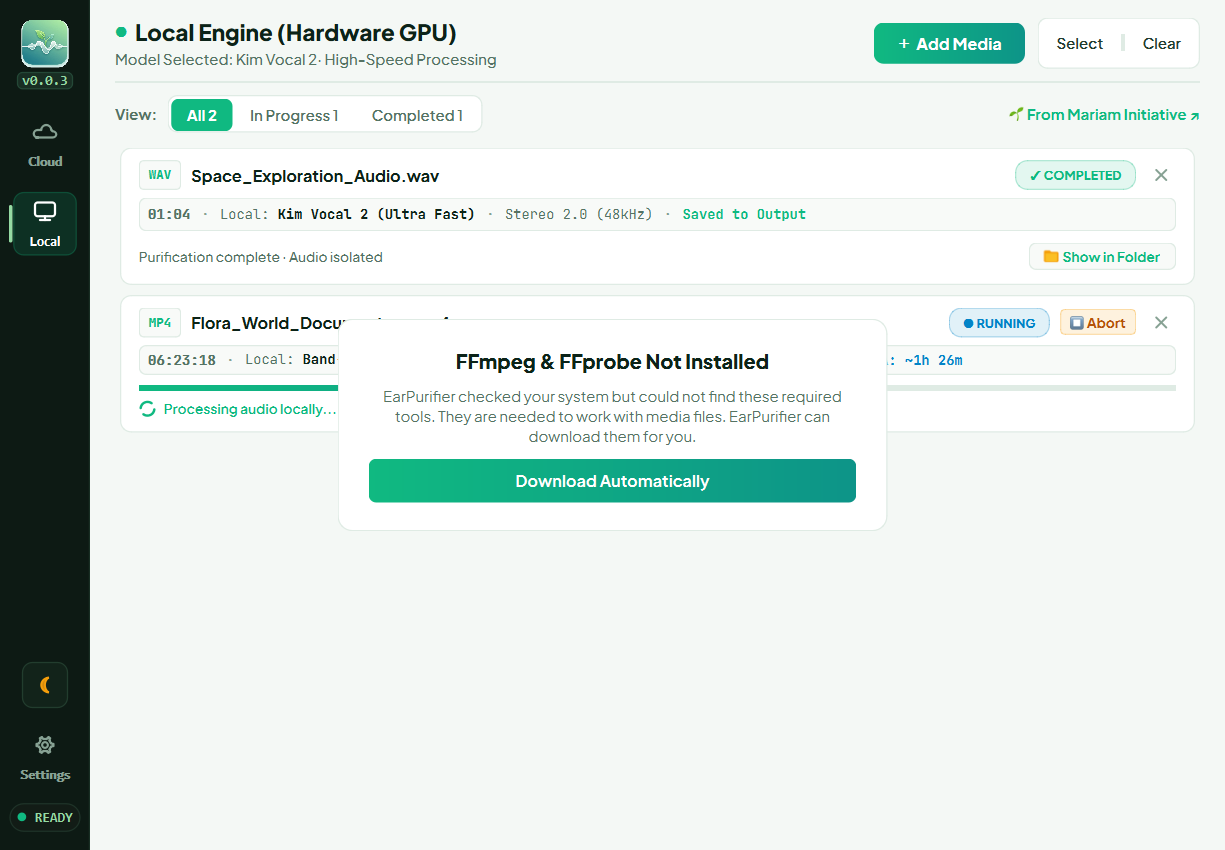
- Resolution:
- No manual setup or command-line configuration required!
- Simply click the "Download Automatically" button.
- EarPurifier will immediately fetch and configure the required tools in a safe, isolated directory. The dialog will close automatically once ready so you can proceed.
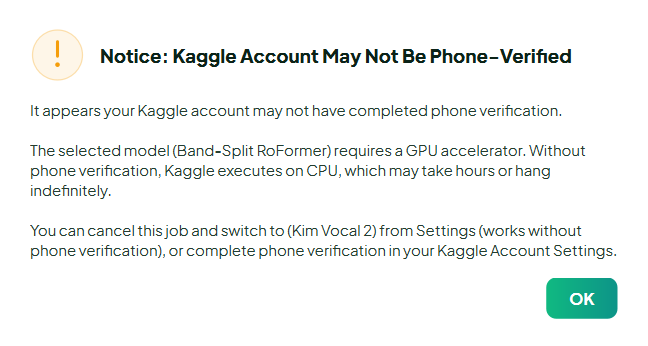
3. Phone Verification Warning Dialog
- Cause: Kaggle requires a one-time SMS phone verification on your account before granting access to its free cloud GPUs. If you try to process a file using RoFormer or MDX23C without phone verification, EarPurifier displays a friendly heads-up:
- What should you do?
- This warning is non-blocking, but without phone verification, GPU-based jobs (RoFormer & MDX23C) will most likely stall or fail to complete because Kaggle cannot allocate a GPU to your account.
- Recommended Action: It is best to cancel the current job immediately and choose one of the following two options:
- Verify your phone number: Go directly to kaggle.com/settings and complete the Phone verification section using your SMS code (see the illustrated walkthrough in Step 5.2: Phone Verification (Unlocking Fast GPU Access)). This is done only once and unlocks 30 hours of free weekly GPU quota.
- Process without a phone number (Switch to Kim Vocal 2): If you prefer not to verify a phone number, you can restart the job and choose Kim Vocal 2. This model runs on Kaggle's free standard processors (CPU) without needing phone verification (note that it may run slightly slower on CPU).
4. Kaggle 401 Unauthorized / Invalid Credentials
- Cause: A misspelling in your Kaggle Username or an expired/revoked API token.
-
Resolution:
- Head directly to your Kaggle API settings: kaggle.com/settings/api -> click Generate New Token.
- Open Settings (⚙️) in EarPurifier, paste the new token, ensure your username matches your handle (the part after
kaggle.com/, not your display name), and click Save Settings.
5. "Queue Congested" Status Banner
- Cause: Temporary global demand spikes on Kaggle servers during peak hours.
- Resolution: No action needed on your part! EarPurifier automatically pauses the countdown timer and keeps your task safely in queue. As soon as a server becomes available, processing will start and finish automatically (usually within a few minutes).
6. Will Vocal Separation Affect Video Audio Sync or Lip Sync?
- Answer: Not at all! EarPurifier processes audio tracks with millisecond precision to ensure that the separated speech matches the original video timing perfectly, with zero audio drift or lip-sync mismatch.
7. Where Can I Find Diagnostic Logs to Request Help?
If you encounter any unexpected behavior and want to share your log file with the team for support:
- Press
Win + Ron your keyboard to open the Run dialog. - Paste the following path and press Enter:
%APPDATA%\EarPurifier\applogs - Locate the file named
earpurifier.log. You can share it directly with our Technical Support Account for immediate assistance.