The Local Journey
9. The Complete Local Processing Journey
Once your local engine and model weights are set up, you can process media completely offline without relying on external servers:
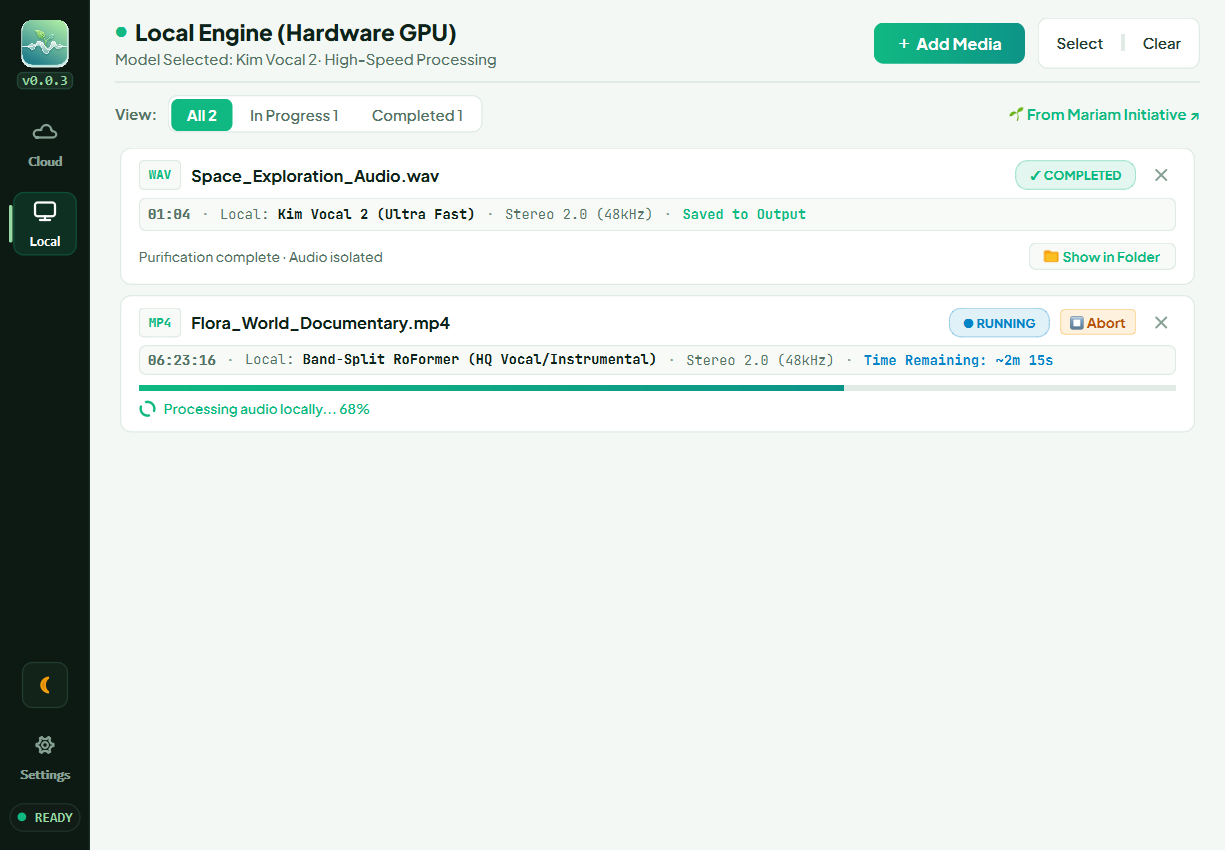
Step 9.1: Ingest Media & Select Architecture
- In the Local section, choose the model that fits your computer:
- RoFormer: If your computer has a dedicated NVIDIA graphics card.
- Kim Vocal 2: If running on a standard processor or when speed is your main priority.
- MDX31C: Balanced speed and quality. Mostly requires a GPU too.
- Click + Add Media or drop files onto the queue.
Step 9.2: Real-Time Execution & Estimation Metrics
Local processing starts right away, featuring two helpful indicators:
- Continuous Progress Bar: Smoothly advances from 0% to 100% across all phases (audio extraction, AI vocal separation, and final container remuxing).
- Intelligent Countdown ETA: Calculates remaining time dynamically based on your computer's actual processing speed, giving you a relatively reliable and stable completion estimate.
Step 9.3: Completion & Playing Your File
Upon reaching 100%, EarPurifier losslessly places the separated voice track back into the source video. Click Show in Folder on the green completed card to inspect and play your new video.
Next: Managing Tasks & Queue.