Managing Tasks & Queue
10. Managing Tasks, Batches & Queue Control
EarPurifier's studio queue is designed to handle multi-file batches cleanly and with full user control:
1. Real-Time Status Filters
Easily filter your workflow using the filter buttons at the top of the queue:
- All Jobs: Displays every item in the queue, whether pending, processing, or completed.
- In Progress: Filters exclusively to items actively uploading or separating audio.
- Completed: Displays successfully finished media ready for viewing.
2. Aborting Active Jobs & Quota Protection
If you want to stop an active job:
- Click the ⏹ Abort button on the active card.
- In Cloud Mode: EarPurifier cancels and purges the remote cloud container immediately, halting GPU execution on the spot and protecting your free weekly quota.
- In Local Mode: Stops the process on your computer instantly and frees your hardware resources.
3. Batch Selection & Cleaning Up History
To clear completed cards or organize your list:
- Click Select in the top action bar to enter selection mode.
- Check individual cards or click Select All.
- Click Remove Selected to open the confirmation prompt:
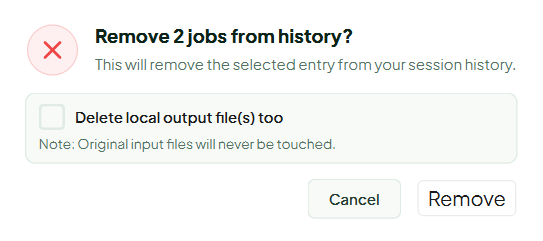
- Delete output files from storage: Check this box if you wish to permanently delete the generated
_purifiedmedia files from your hard drive; leave it unchecked to simply clear the cards from the app while keeping your purified files safe on your computer.
Next: AI Models Guide.