Setting Up Local Engine
8. Setting Up the Local Engine (100% Offline)
If you prefer processing media completely offline or want to harness your local graphics card, EarPurifier provides an automated, one-click local engine setup:
Step 8.1: Switch to Local Mode
In EarPurifier's navigation rail, click the Local button (desktop PC icon 💻).
Step 8.2: One-Click Automated Engine Installation
When entering the Local section for the first time without the local engine installed, you will see the automatic installation prompt:
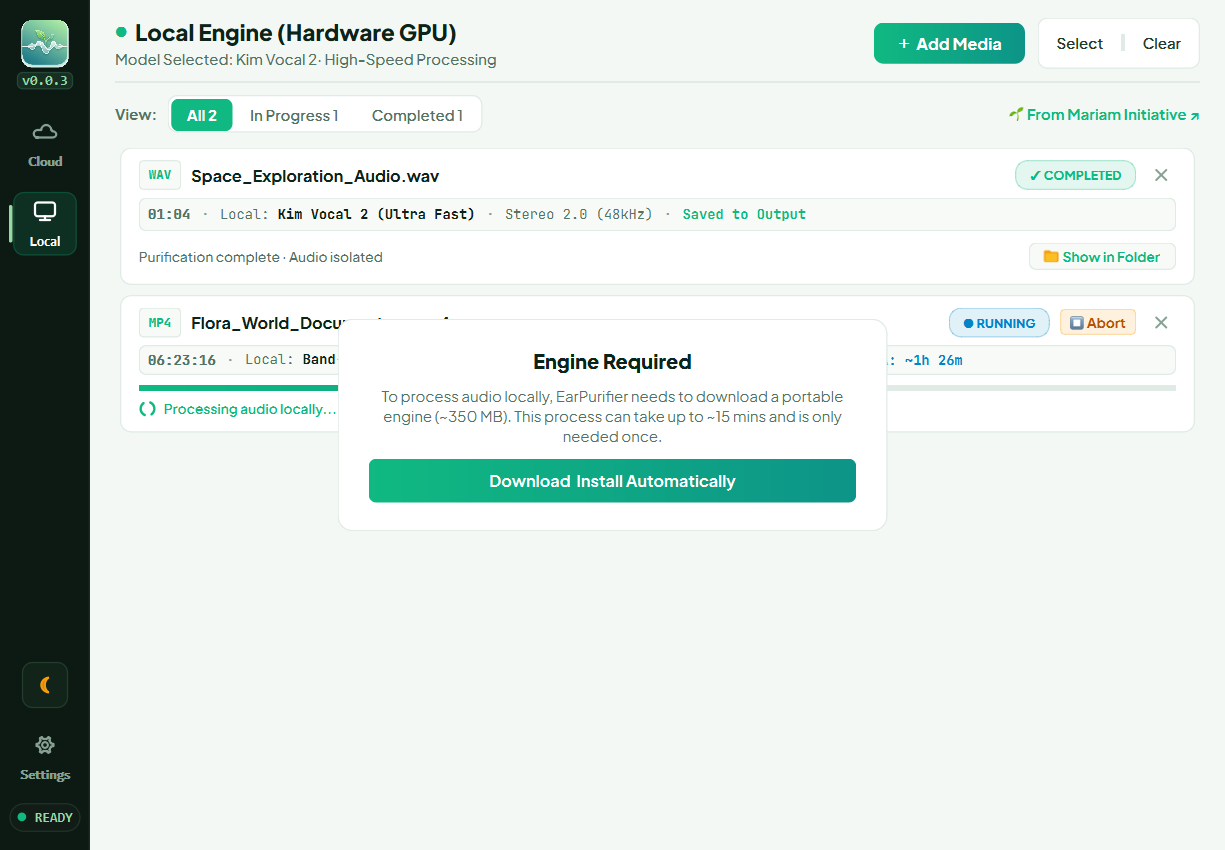
- Click the "Download & Install Automatically" button.
-
EarPurifier will immediately inspect your machine and fetch the compatible package (~350 MB for standard CPUs, or ~2.7 GB for NVIDIA GPU systems with CUDA acceleration), going through 3 automated stages:
- Stage 1/3: Sets up an isolated, safe runtime environment inside EarPurifier's dedicated folder.
- Stage 2/3: Installs and enables the PyTorch AI engine with hardware acceleration.
- Stage 3/3: Installs the core audio separation tooling and verifies installation integrity.
-
Once completed, the overlay vanishes automatically and the Local Processing studio becomes active and ready.
Zero System Changes
The installation runs in complete isolation. EarPurifier never alters Windows system settings or interferes with other software installed on your computer.
Step 8.3: Download AI Models
To process audio locally without an internet connection, each AI model needs its weights downloaded once:
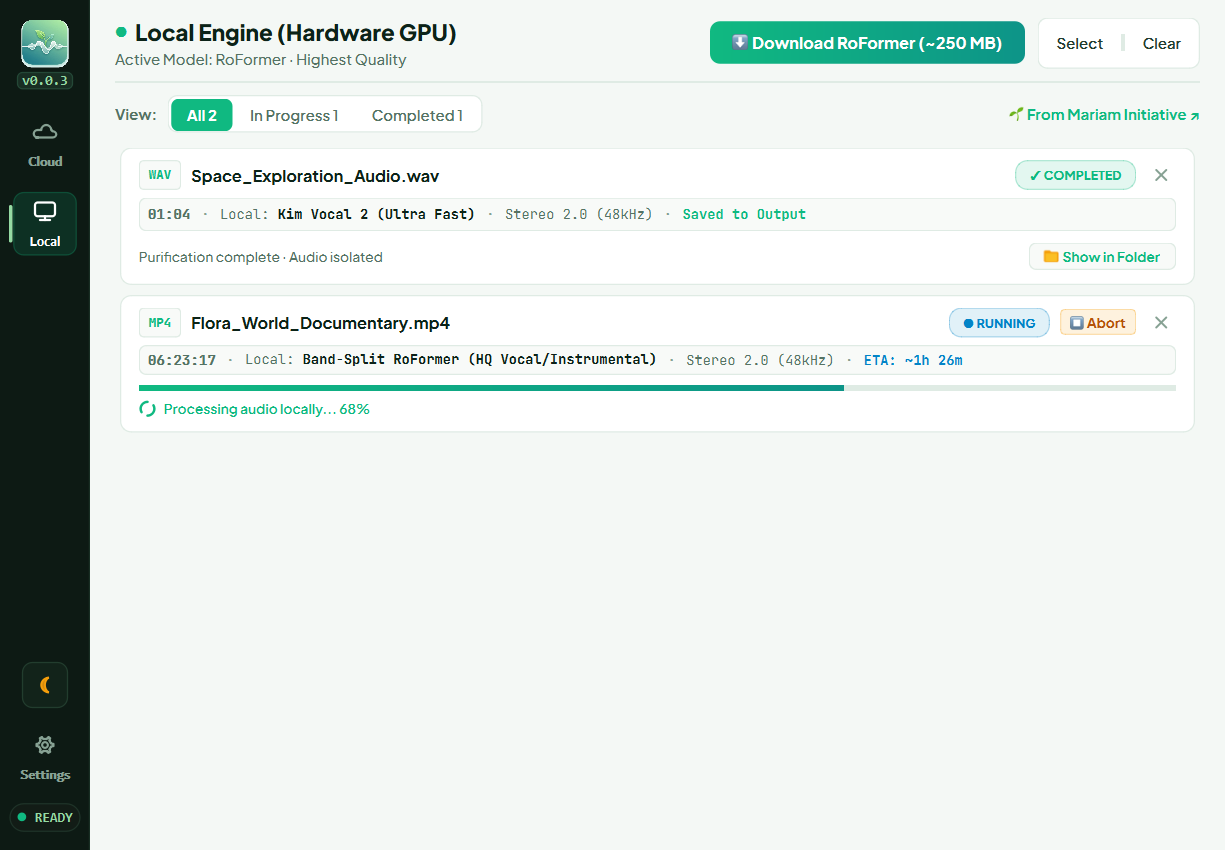
- RoFormer (Highest Quality): ~250 MB (The gold standard worldwide, recommended for dedicated NVIDIA GPUs).
- MDX23C (Balanced Quality & Speed): ~150 MB (Crisp vocal separation and fast processing speed).
- Kim Vocal 2 (Ultra Fast): ~110 MB (Extremely lightweight, runs smoothly on standard host CPUs without a graphics card, and delivers 80% of RoFormer's quality at lightning speed).
How the Download Button Works:
- The primary button in the top action bar displays "⬇ Download [Model Name]" along with its exact file size.
- Clicking the button begins the download immediately, updating the button's text with live percentage progress (e.g.,
⬇ Downloading RoFormer... 45%). - Once the download reaches 100%, the button automatically transforms into the familiar green "+ Add Media" button so you can start adding files immediately!