First Launch
4. First Launch
EarPurifier is packaged as a portable, standalone executable (EarPurifier.exe) requiring zero installation.
Step 4.1: Download EarPurifier
Download the latest EarPurifier.exe binary from the official Mariam Initiative channel:
t.me/MariamInitiative
or directly from GitHub Releases:
github.com/nitpacker/EarPurifier/releases.
Place EarPurifier.exe in any folder of your choice (e.g. Desktop).
Step 4.2: Launch the Executable
Double-click EarPurifier.exe to start the studio.
Step 4.3: Windows SmartScreen Notice
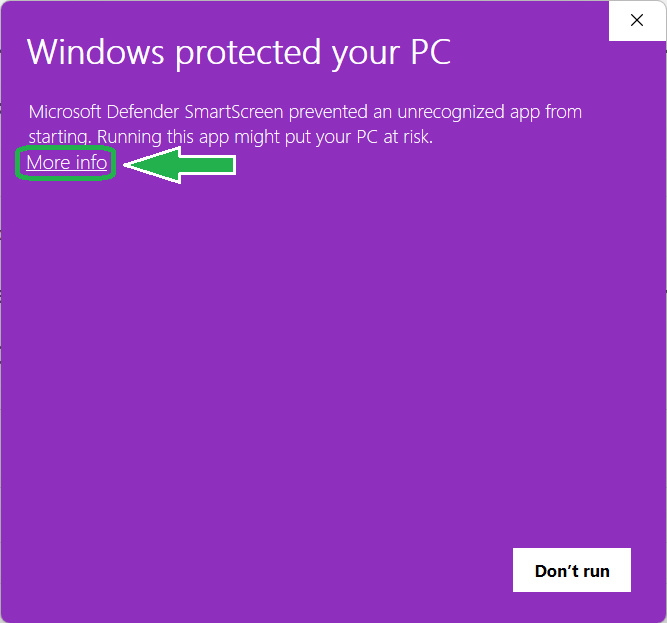
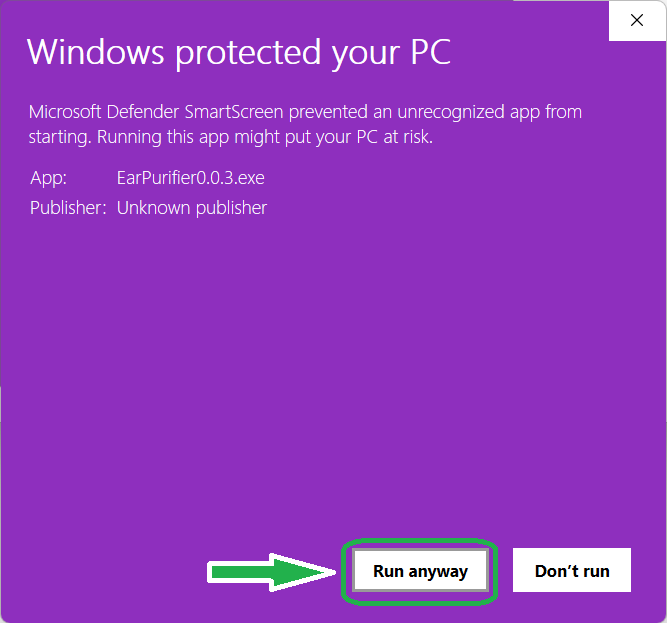
On your first launch on Windows 10 or 11, you may encounter a blue dialog stating "Windows protected your PC".
This is a standard informational prompt from Windows Defender SmartScreen for newly released open-source executables that have not yet built enterprise reputation. It does not indicate that the software is harmful.
To proceed: 1. Click the small "More info" link under the main warning text. 2. Click the "Run anyway" button that appears at the bottom right.
Step 4.4: Exploring & Customizing the Studio UI
EarPurifier will open immediately. The application defaults to Arabic (with native Right-to-Left layout) and Light theme.
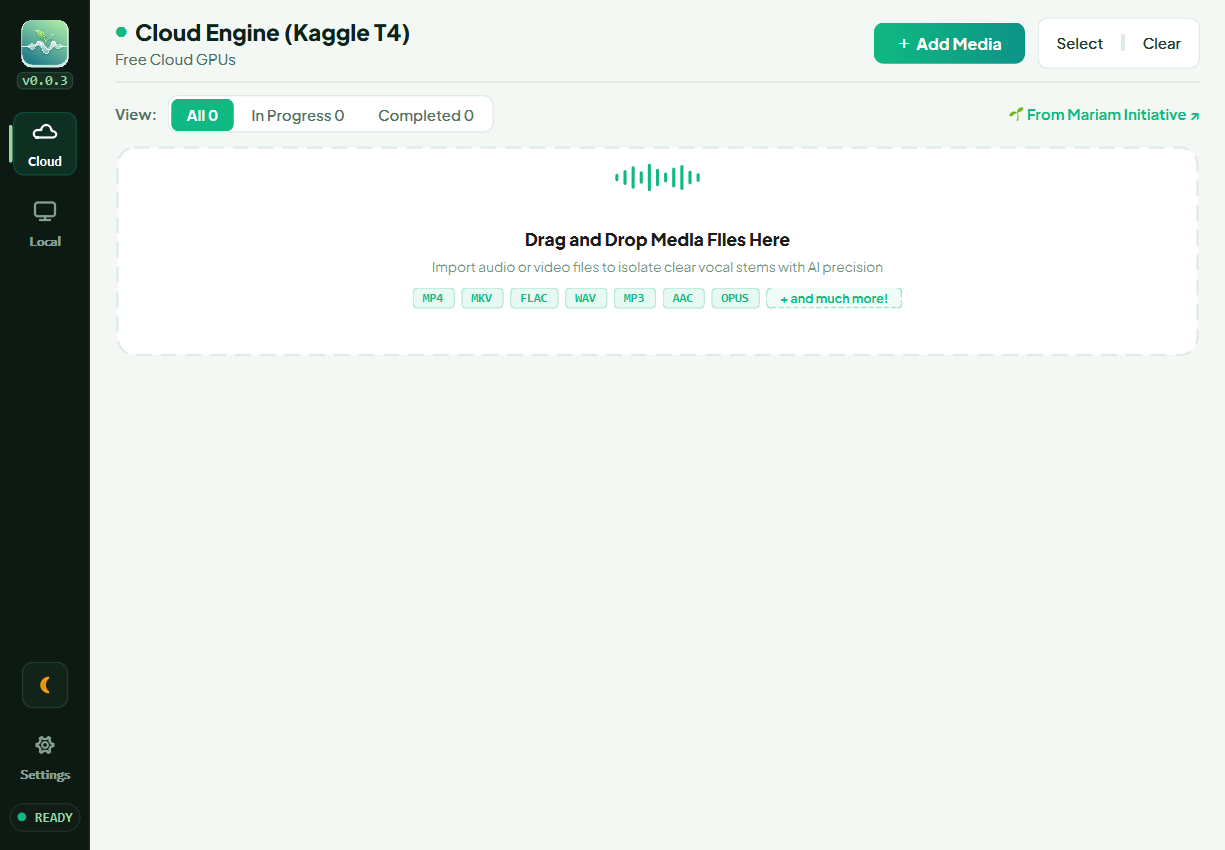
Language Switching (Arabic / English):
You can toggle between English and Arabic anytime in the Settings dialog. The layout directions (LTR and RTL), typography, and icons mirror dynamically without restarting.
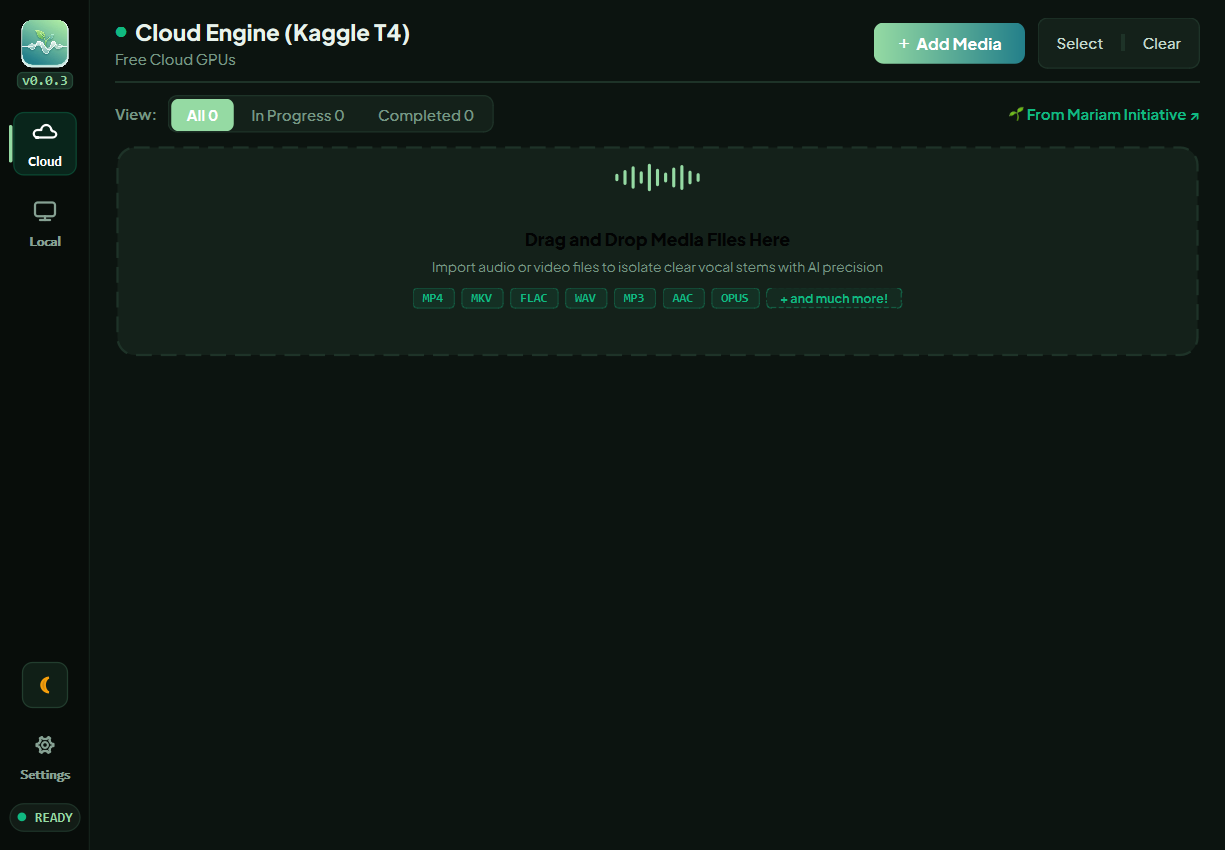
Theme Switching (Light / Dark):
In the navigation rail, click the Sun/Moon toggle to switch between light and dark modes.
Next: Kaggle Account & Setup.